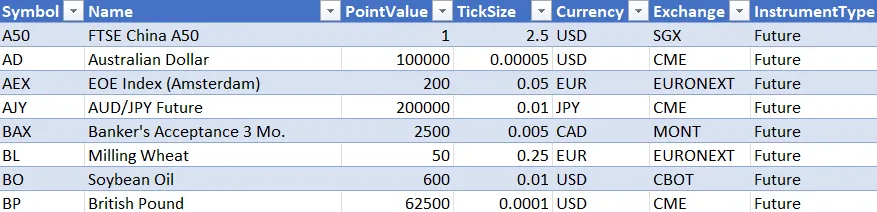
Instruments
To accurately backtest an instrument, more information is needed than just price. BarSeries expose an Instrument property which contains key contract specifications used to calculate P&L’s.
Required fields
Section titled “Required fields”The following fields are required to define a valid instrument for backtesting:
- Symbol
- Instrument type
- Point value
- Tick size
- Currency
The code snippet below creates an instrument for the 30Yr Treasury Bond future which trades in 32nd’s (i.e. a tick size of 0.03125) and has a point value or multiplier of $1000 (i.e. a one point move is worth $1000 per contract).
new Instrument("US", InstrumentType.Future, 1000, 1D / 32);Instrument file
Section titled “Instrument file”An instrument file is a simple json or xml document containing instrument definitions. If a file named “instruments.json” (or “instruments.xml”) is found within a data directory, a BarServer will use it to populate the Instruments collection and set the BarSeries.Instrument property automatically when a symbol is loaded. If no instrument file exists, or a symbol is not found within the instrument file, most BarServers will assume a default instrument of a generic equity with a tick size of 0.01 and point value of 1.
Creating an instrument file
Section titled “Creating an instrument file”The easiest way to create an instrument file is to create a new InstrumentCollection, add the instruments of interest, and then call Save(). In the example below, we add two instruments, WTI Crude Oil with the minimum required properties specified, and the Euro Bund contract with additional information. Although there are only a handful of required properties, the backtester will use any additional properties, if available, to do things like calculate margin requirements, group performance results by sector, etc.
var instruments = new InstrumentCollection();instruments.Add(new Instrument("CL", InstrumentType.Future, 1000, 0.01));instruments.Add(new Instrument{ Symbol = "FGBL", Name = "Bund", InstrumentType = InstrumentType.Future, PointValue = 1000, TickSize = 0.01, Currency = "EUR", Sector = "Fixed Income", Months = "HMUZ", Exchange = "EUREX", InitialMargin = 1995, AltIdentifier = "RX"});instruments.Save(@"c:\temp\instruments.json");The resulting instruments.json file will look like this:
[ { "Symbol": "CL", "PointValue": 1000.0, "TickSize": 0.01, "InstrumentType": "Future", "Currency": "USD" }, { "Symbol": "FGBL", "Name": "Bund", "PointValue": 1000.0, "TickSize": 0.01, "InstrumentType": "Future", "Currency": "EUR", "Exchange": "EUREX", "InitialMargin": 1995.0, "Sector": "Fixed Income", "AltIdentifier": "RX", "Months": "HMUZ" }]Conversion factors
Section titled “Conversion factors”Some data providers use quoting conventions that don’t necessarily match the exchange or perhaps you would simply prefer to see an instrument quoted in a different format. The ConversionFactor property can be specified for an instrument which can be used by data servers to adjust prices, typically by shifting the decimal place by applying a factor like 100 or 0.01. Most built-in data servers will automatically apply the conversion factor when a series is loaded.
Global instrument file
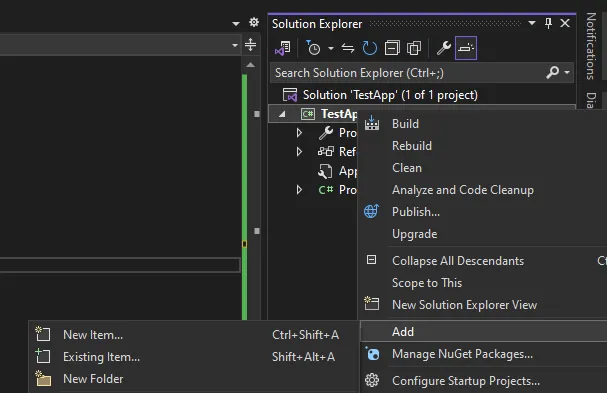
Section titled “Global instrument file”The backtester includes an instrument file with contract specifications for common futures contracts. A global instrument file can useful when you use the same symbology or data provider across multiple directories. To add this to your Visual Studio project, first save the instruments files to your local drive. Right click on the project and select ‘Add’ and then ‘Existing item’. Navigate to where you saved the instruments file, highlight it, and click ‘Add’.
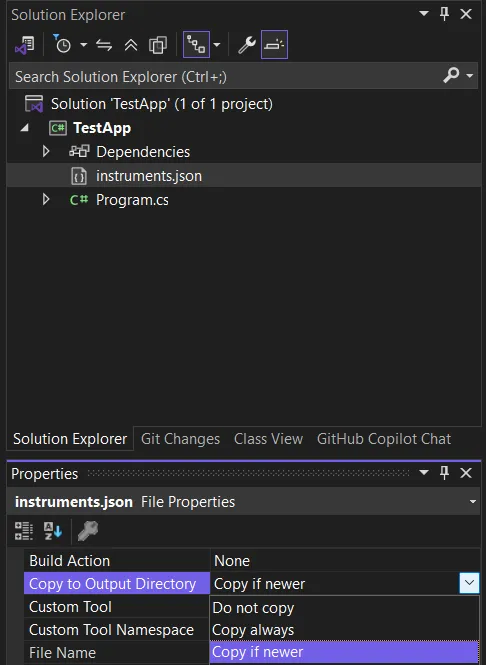
After instruments.json has been added to your project, remember to set the ‘Copy to Output Directory’ property to ‘Copy always’ or ‘Copy if newer’ so the backtester can find the instrument file in the output directory when it runs.
With a global instrument file in place, instrument definitions can be loaded into an InstrumentCollection using the static Load() method.
var instruments = InstrumentCollection.Load();var gold = instruments["GC"];Console.WriteLine(gold); //prints 'GC Gold Future 100 0.1'Large and/or complex instrument files can also be created or manipulated with Excel by saving the spreadsheet as an xml file. Since InstrumentCollection can read and write both json and xml files, I recommend you convert the instruments.json file included with the backtester to use as a starting point.
InstrumentCollection.Load("instruments.json").Save("instruments.xml", PersistenceFormat.Xml);You should now be able to open the resulting xml file in Excel. Be sure to save any changes as file type ‘XML Data (*.xml)’ in Excel.