
Visualize Optimization Results
The default optimization report has a filter enabled on the header row to allow for easy sorting and filtering of results. A surface chart can be helpful to visualize the interaction between two different parameters at a glance. For example, using data from the Optimization example, we can plot the Sharpe Ratio with respect to the short and long moving average lengths.
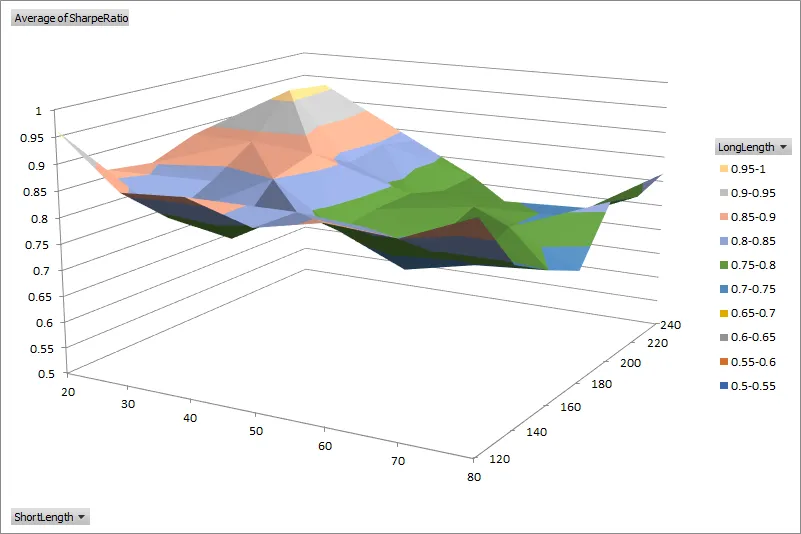
To create surface charts automatically from an optimization report, place the following macro in your Excel Personal Macro Workbook and assign a hotkey.
Public Sub CreateSurfaceChart()
    Dim r As Range    Dim ws As Worksheet    Dim pivot As PivotTable
    Range("A1").Select    Range(Selection, Selection.End(xlToRight)).Select    Range(Selection, Selection.End(xlDown)).Select    Set r = Selection
    Set ws = Sheets.Add    ActiveWorkbook.PivotCaches.Create(SourceType:=xlDatabase, SourceData:= _        r, Version:=xlPivotTableVersion14).CreatePivotTable _        TableDestination:=ws.Name & "!R3C1", TableName:="PivotTable1", DefaultVersion _        :=xlPivotTableVersion14    ws.Select    ws.Cells(3, 1).Select
    Set pivot = ws.PivotTables("PivotTable1")
    With pivot.PivotFields(1)        .Orientation = xlRowField        .Position = 1    End With
    With pivot.PivotFields(2)        .Orientation = xlColumnField        .Position = 1    End With
    pivot.AddDataField pivot.PivotFields("Sharpe Ratio"), "Average of SharpeRatio", xlAverage
    ws.Shapes.AddChart.Select    ActiveChart.ChartType = xlSurface
    Set r = ws.Range(ws.Cells(3, 1), ws.Cells(3, 1).Offset(pivot.RowFields.Count, pivot.ColumnFields.Count))    ActiveChart.SetSourceData Source:=r
    ws.Shapes(1).Top = 50    ws.Shapes(1).Left = 50    ws.Shapes(1).Width = 600    ws.Shapes(1).Height = 400
End Sub